martes, 1 de noviembre de 2011

And now...for some crazy news...


Those of you who know me in real life, knows that I'm crazy about SAP...and I mean it...I really love SAP...

So...I love them so much, than guess what? I'm going to start officially working for them this November 21st -:D

I'm going to hold the position of Development Expert on Platform Evangelism and Developer Adoption of SAP Labs.

Good news...I'm going to be more on-line than ever, meaning that I'm going to able to post more on the blog -:)

Greetings,
Blag.

jueves, 6 de octubre de 2011

uCertify - No more excuses to not get certified


If you follow my blog (I really hope you do), you might remember that some time ago I wrote about uCertify in a post called uCertify - Certifications made easy..., now, I'm here again to tell my experience with another certification package PMP: PMP Project Management Professional.

First things first, the look and feel have been greatly improved.


We have a large a nice library of study material.


And we can also keep track of our progress.


Now...let's take a look at some of the study material, which is one of the most important aspects of this kit of course.


As you can see, we have many Study Notes, all with key questions that would help us to get trained faster...but...what's inside those Study Notes? Let's find out...


A short but detailed explanation, that will be easier to understand and remember.
So...let's go to the interesting part...exams! We can actually took an Diagnostic Exam, just to see how were are.


Question are multiple based ones, so we might need to study hard and don't get stuck in tricky questions...


Did I told about keeping track of your exams? That's another nice feature.


So what do you think so far? Awesome tool, right? But hey...the magic doesn't stop here...I'm reviewing only one product...if you go to uCertify home page, you will find a lot more:


So as I said in the title...no more excuses to not get certified...go grab your wallet, download you kit, and start studying. I can guarantee, you will not regret it.

Disclaimer: This blog is based on my own personal thoughts and experiences.

Greetings,

Blag.

martes, 27 de septiembre de 2011

Ruby, Camping and...Gateway?


It's been a long time since my last Ruby blog...so I wanted to something nice...instead of emulate any SAP transaction, it was time for me to engage with new SAP technologies, and Gateway really looks promising...so...what's Gateway?
Gateway is based on OData, which allows us to perform CRUD operations on WebService like applications...in other words...it's just awesome technology -;) If you want to find out more, please refer to this homepage on SCN "SAP NetWeaver Gateway Demo System".
So...we can access Gateway using many technologies, for example JavaScript or Java for Blackberry. But for sure, I wanted to go beyond those awesome examples, and searched for other ways to consume Gateway data...on the OData SDK List I found a Ruby gem called Ruby_OData, which works awesome for services like Netflix OData, but didn't work to well for SAP Gateway services...
As you may know...here on SCN, we're like family, so we like to work together on some nice project, so as you can see here...that's what we did -;)

SAP NETWEAVER GATEWAY DEMO SYSTEM


With the gem working, I knew I wanted to blog about it...build a small Ruby application to show how easy is to use the Ruby_OData gem...but of course...having a DOS style black window wasn't very likely...so I decide to use Camping once again -:) and of course...Camping is not very classy...and I think it's not even maintained anymore...so if you're looking for something nicer, you can use Sinatra instead -;)
As I love to say..."Enough talk! Let's go to the source code!"
Camping_Gateway.rb
gem 'ruby_odata'
require 'ruby_odata'

Camping.goes :Camping_Gateway

module Camping_Gateway::Controllers

  class Index < R '/'
    def get
      render :_login
    end
  end
  
  class Login
    def post
      @client = input.client
      @user = input.user
      @password = input.password
      render :_showtable
    end  
  end
  
   class ShowTable 
    def post     
      render :_showtable
    end
  end 
end 

module Camping_Gateway::Views
  def layout
    html do
      head do
        title {"Camping and Gateway - Flight Example"}
      end
      body { _login }
    end
  end

  def _login
    form:action => R(Login), :method => 'post' do
      h1 {"Camping and Gateway - Flight Example"}

      label 'Client ', :for => 'client';
      input :name => 'client', :type => 'text'; br
      label 'User ', :for => 'user';
      input :name => 'user', :type => 'text'; br
      label 'Password ', :for => 'password';
      input :name => 'password', :type => 'password'; br      
      
      input :type => 'submit', :name => 'login', :value => 'Login'
    end
  end

  def _showtable
    svc = OData::Service.new "http://gw.esworkplace.sap.com/sap/opu/sdata/sap/DEMO_FLIGHT",
                             {:username => @user, :password=> @password, 
                              :additional_params=> {'sap-client'=>@client.to_i}}
    svc.z_demo_flightCollection
    flight = svc.execute

    $Data_Names = Array.new
    $Data_Fields = Array.new
    $Data_Split = Array.new
    
    $Data_Names.push("Airline")       #airline
    $Data_Names.push("City From")     #cityfrom
    $Data_Names.push("Airport From")  #airportfr
    $Data_Names.push("Currency")      #curr_iso
    $Data_Names.push("City To")       #cityto
    $Data_Names.push("Airport To")    #airportto    

    for flights in flight do
      puts flights.airline
      $Data_Fields.push(flights.airline + "|" + flights.cityfrom + "|" + 
                        flights.airportfr + "|" + flights.curr_iso + "|" + 
                        flights.cityto + "|" + flights.airportto)
    end    

    $Fields_Len = $Data_Names.length
    $Data_Len = $Data_Fields.length

    table.sample! :cellspacing => 0, :cellpadding => 2 do
      thead do
        tr do
          for i in 0...$Fields_Len
            th "#{$Data_Names[i]}"
          end          
        end
      end
      for i in 0...$Data_Len
        tbody do
          tr do
            $Data_Split = $Data_Fields[i].split("|")
            for i in 0...$Fields_Len
              td "#{$Data_Split[i].to_s.strip}"
            end
          end
        end
      end
    end
  end 
end
To run this example, we need to provide only 3 simple parameters:
Client = 800
Username = GW@ESW
Password = ESW4GW


I know what you're going to tell me after you read the source code...why I'm taking the work of reading the date, putting them on an array and looping that? I know I just could read the field from the model and all that...but...for some reason that I still need to discover...the filtering doesn't work as I expected...for example...I should be able to pass a filter to only select the CITYTO = ' NEW YORK', but it doesn't work even when I don't have any errors...so my approach here (and that's for another blog), it to have all the information stored internally to be able to do the filtering after calling the Gateway service...so...if you're an SAP Gateway expert...please let me how to make the filter work -:( Because, I know that if I pass the VALUE, SCHME_ID and SCHEME_AGENCY_ID it's going to work, but only for 1 record...I want a better filter -;)
Hope you enjoy this one...and see you soon with more Gateway coolness!

Greetings,

Blag.

viernes, 9 de septiembre de 2011

First blog from my IPad

This is a test post...I'm using the new Blogger app for the IPad...well...for the IPhone actually, that can run on the IPad (Looks horrible by the way...hate that 2x lens...).

Anyway, it's so nice to finally be able to post from a mobile device -:)

Greetings,

Blag.

viernes, 15 de julio de 2011

wxPython and SAP


Original Post: Tasting the mix of Python and SAP - Volume 3

Hello and welcome back to this little corner of Scripting Languages fun -:)

Today, we're going to see how can we use wxPython and SAP to make an SE16 emulation.

So, what's wxPython? It's a Python wrapper of the C++'s wxWidgets that allows us to create rich UI applications.

For this blog I was tempted to use Tkinter but gotta admit that I like wxPython more...as I have already used it in my Ruby projects. Anyway in Ruby it was a little bit easier than in Python -:P

Enough talk, let's go to the source code...(That could fit nice on a T-Shirt, right?)

Again, and as always in my Python/SAP projects...I used YAML to host the SAP connections parameters.

sap.yml

ashost: localhost
sysnr: "00"
client: "001"
lang: EN
trace: 1
loglevel: warn

SE16_wxPython.py

import wx
import sapnwrfc
import wx.grid as wxGrid

conn = ""
table = ""


class MyApp(wx.App):

def OnInit(self):
self.frame = MyFrame(None, title="Login")
self.SetTopWindow(self.frame)
self.frame.Show()
return True


class MyFrame(wx.Frame):

def __init__(self, parent, id=wx.ID_ANY, title="",
pos=wx.DefaultPosition, size=(210, 150),
style=wx.DEFAULT_FRAME_STYLE,
name="MyFrame"):
super(MyFrame, self).__init__(parent, id, title, pos,
size, style, name)

self.panel = wx.Panel(self)
self.text_font = wx.Font(12, wx.DEFAULT, wx.NORMAL, wx.NORMAL)
self.t_user = wx.StaticText(self.panel, -1, "User",
size=(40, 20), pos=(10, 12))
self.t_password = wx.StaticText(self.panel, -1, "Password",
size=(40, 20), pos=(10, 32))
self.t_user.SetFont(self.text_font)
self.t_password.SetFont(self.text_font)
self.user = wx.TextCtrl(self.panel, value="", pos=(90, 10))
self.password = wx.TextCtrl(self.panel, value="",
pos=(90, 30),
style=wx.TE_PASSWORD)
self.btnConnect = wx.Button(self.panel, label="Connect",
pos=(70, 80))

self.Bind(wx.EVT_BUTTON, self.OnButtonConnect,
self.btnConnect)

def OnButtonConnect(self, event):
global conn
user = self.user.GetValue()
password = self.password.GetValue()
sapnwrfc.base.config_location = "sap.yml"
sapnwrfc.base.load_config()
conn = sapnwrfc.base.rfc_connect({'user': user,
'passwd': password})
self.Close()
myGrid = GridFrame(None, title="SE16 Emulator")
myGrid.Show()


class GridFrame(wx.Frame):

def __init__(self, parent, id=wx.ID_ANY, title="",
pos=wx.DefaultPosition, size=(600, 400),
style=wx.DEFAULT_FRAME_STYLE,
name="GridFrame"):
super(GridFrame, self).__init__(parent, id, title, pos,
size, style, name)

self.panel = wx.Panel(self)
self.text_font = wx.Font(12, wx.DEFAULT, wx.NORMAL, wx.NORMAL)
self.t_table = wx.StaticText(self.panel, -1, "Table",
size=(40, 20), pos=(180, 12))
self.t_table.SetFont(self.text_font)
self.table = wx.TextCtrl(self.panel, value="", pos=(225, 10))
self.btnShow = wx.Button(self.panel, label="Show Table",
pos=(330, 10))

self.Bind(wx.EVT_BUTTON, self.OnButtonShow, self.btnShow)

def OnButtonShow(self, event):
global conn
table = self.table.GetValue()
fields = []
fields_name = []
func_disc = conn.discover("RFC_READ_TABLE")
func = func_disc.create_function_call()
func.QUERY_TABLE(str(table))
func.DELIMITER("|")
func.invoke()
data_fields = func.DATA.value
data_names = func.FIELDS.value
long_fields = len(func.DATA())
long_names = len(func.FIELDS())

for line in range(0, long_fields):
fields.append(data_fields[line]["WA"].strip())
for line in range(0, long_names):
fields_name.append(data_names[line]["FIELDNAME"].strip())

self.grid = wxGrid.Grid(self.panel, pos=(0, 40),
size=(853, 320))
self.grid.EnableEditing(False)
self.grid.CreateGrid(long_fields, long_names)

for line in range(0, long_names):
field_name = fields_name[line]
self.grid.SetColLabelValue(line, field_name)
for line_f in range(0, long_fields):
data_split = fields[line_f].split("|")
for line_n in range(0, long_names):
self.grid.SetCellValue(line_f, line_n,
data_split[line_n])

def onClose(self, event):
global conn
conn.close()


if __name__ == "__main__":
app = MyApp(False)
app.MainLoop() 

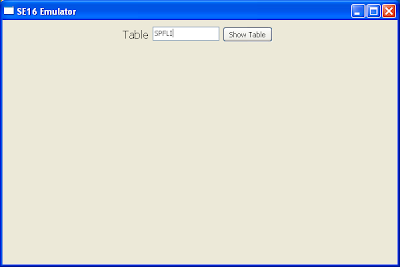
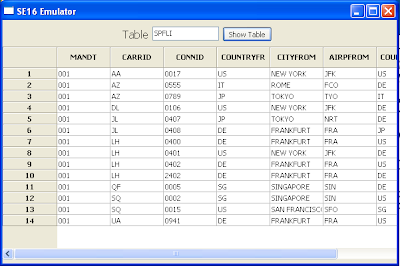
Now, the images:
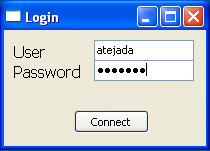


So basically, what we have here is a Login screen with the Username and Password and a connection button. When we connect to SAP, then the window dissapeared and a new window pops out. This new windows ask us for a table name and displays a grid containing all the information.

See ya next time -;)

Blag.

lunes, 4 de julio de 2011

Decimals to Romans and LCD Number in Python


As part of my Python learning, I'm taking my old Ruby codes and ported them to Python...and believe me...there's no better way to learn -:)

The first program that I took off was Decimals to Romans, which I discovered that wasn't working right for big numbers -:( After a few tweaks on Python, it's ready for action -;)


Roman_Table = {1000: 'M', 900: 'CM', 500: 'D', 400: 'CD',
100: 'C', 90: 'XC', 50: 'L', 40: 'XL',
10: 'X', 9: 'IX', 5: 'V', 4: 'IV', 1: 'I'}

global result
keys = []

def reverse_numeric(x, y):
return y - x

def Roman_Number(number):
result = ""
keys = Roman_Table.keys()
keys = sorted(keys, cmp=reverse_numeric)
while number > 0:
for i in keys:
if number >= i:
result += str(Roman_Table.get(i, 0))
number -= i
break
return result

number = input("\nEnter a number: ")
result = Roman_Number(number)
print ("\n" + result)


The next one was LCD Numbers which believe it or not...I manage to cut down from the 160 lines of Ruby code, to only 35 lines...awesome, right?


global line1, line2, line3

line1 = ""
line2 = ""
line3 = ""

zero = {1: ' _ ', 2: '| | ', 3: '|_| '}
one = {1: ' ', 2: '| ', 3: '| '}
two = {1: ' _ ', 2: ' _| ', 3: '|_ '}
three = {1: '_ ', 2: '_| ', 3: '_| '}
four = {1: ' ', 2: '|_| ', 3: ' | '}
five = {1: ' _ ', 2: '|_ ', 3: ' _| '}
six = {1: ' _ ', 2: '|_ ', 3: '|_| '}
seven = {1: '_ ', 2: ' | ', 3: ' | '}
eight = {1: ' _ ', 2: '|_| ', 3: '|_| '}
nine = {1: ' _ ', 2: '|_| ', 3: ' _| '}

num_lines = {0: zero, 1: one, 2: two, 3: three, 4: four,
5: five, 6: six, 7: seven, 8: eight, 9: nine}

def Lines(number):
global line1, line2, line3
line1 += number.get(1, 0)
line2 += number.get(2, 0)
line3 += number.get(3, 0)

number = str(input("\nEnter a number: "))
length = len(number)
for i in range(0, length):
Lines(num_lines.get(int(number[i:i+1]), 0))

print ("\n")
print line1
print line2
print line3
print ("\n")


I'm really sorry about Ruby, because I still love it...but Python is making so much efforts to become my scripting language of choice -;)

Greetings,

Blag.

miércoles, 22 de junio de 2011

Python, EasyGui and SAP


Original Post: Tasting the mix of Python and SAP - Volume 2

This blog post continues my Python learning adventures, and as I love Web Micro Frameworks, I also love simple graphical frameworks...this time, we're going to use EasyGui, which is wrapper for Tkinter which is also a layer for Tk.

So what's the fuzz about EasyGui? Well...it's an easy way to do GUI's...got it? Easy-Gui...

Anyway, it's not as complete as TKinter but it's for sure easier to learn and easier to develop. Enough talk...let's see the source code...

First, I used Yaml again to hide most of the connection parameters from the user.


ashost: localhost
sysnr: "00"
client: "001"
lang: EN
trace: 1
loglevel: warn

SE16_EasyGui.py

from easygui import *
import sapnwrfc

TITLE = "Python (Easy Gui) & SAP - SE16 Emulator"
conn = ""
table = ""


def Login():
global conn
msg = "Python (Easy Gui) & SAP - SE16 Emulator"
title = "Login"
fieldNames = ["User", "Passwd"]
fieldValues = []
fieldValues = multpasswordbox(msg, title, fieldNames)
user, passwd = fieldValues[0], fieldValues[1]
sapnwrfc.base.config_location = "sap.yml"
sapnwrfc.base.load_config()
conn = sapnwrfc.base.rfc_connect({'user': user, 'passwd': passwd})
ChooseTable()


def ChooseTable():
global table
table = enterbox("Show Table")
if table != " ":
ShowTable()


def ShowTable():
global conn, table
fields = []
fields_name = []
fields_length = []
output = []
header = ""
lines = ""
separator = ""
counter = 0
func_disc = conn.discover("RFC_READ_TABLE")
func = func_disc.create_function_call()
func.QUERY_TABLE(table)
func.DELIMITER("|")
func.invoke()
data_fields = func.DATA.value
data_names = func.FIELDS.value
long_fields = len(func.DATA())
long_names = len(func.FIELDS())

for line in range(0, long_fields):
fields.append(data_fields[line]["WA"].strip())
for line in range(0, long_names):
counter = counter + 1
fields_name.append(data_names[line]["FIELDNAME"].strip())
fields_length.append(data_names[line]["LENGTH"].strip())

for line in range(0, long_names):
field_name = fields_name[line]
field_length = fields_length[line]
if len(field_name) > field_length:
field_length = len(field_name)
field_length = int(field_length) - len(field_name)
spaces = " " * int(field_length)
counter = counter + len(field_name) + len(spaces)
header = header + field_name + spaces + "|"

separator = "-" * counter
output.append(header)
output.append(separator)

for line in range(0, long_fields):
lines = ""
field_length = ""
spaces = ""
data_split = fields[line].split("|")
for line in range(0, long_names):
field_name = fields_name[line]
field_length = fields_length[line]
if len(field_name) > int(field_length):
field_length = len(field_name)
field_length = int(field_length) -
len(data_split[line])
else:
field_length = 0
spaces = " " * int(field_length)
lines = lines + data_split[line] + spaces + "|"
output.append(lines)


codebox("", TITLE, "\n".join(output))

if __name__ == "__main__":
Login()

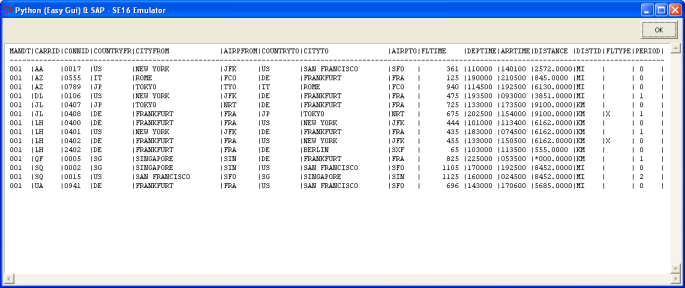
Now, some images of course -:)


Hope you like this one...see ya next time...

Greetings,

Blag.

Python, Bottle, Flask and SAP


Original post: Tasting the mix of Python and SAP

It's been a very long time since my last "Tasting the mix of" blog post...but here we are to change that -;)

Lately, I have been learning Python...a sexy, powerful and easy to learn programming language...so of course...every time I learn something new, I want to apply it to the SAP world...and lucky me, Piers Harding had already creating an Python SAPRfc connector -:D

So, with everything setup and working I proceeded to start working on the SE16 emulator using the DOS screen...but then I realized that even when didn't do an SE16, my good friend David Hull was already using Python, SAPRfc and DOS screen in his blog entitled Python and SAP Adventures.

As I had already worked with Micro Frameworks in Ruby, I thought it was a good idea to implement the same using Python...so after my research I found two nice candidates (Take note that I love Micro Frameworks and not so streamed Frameworks...meaning that I don't like, don't know and don't use Rails or Djanjo...I like to keep it simple).

These Micro Frameworks are called Bottle and Flask (Weird name, huh?).

So, to make things simple, I used the YAML approach, where we use a configuration like file where we are going to put our connection strings...something like the SAPLogon.ini


ashost: localhost
sysnr: "00"
client: "001"
lang: EN
trace: 1
loglevel: warn

For the source codes, let's start with Bottle.

SE16_Bottle.py

from bottle import get, post, request, run, redirect, route
import sapnwrfc

conn = ""


@get('/login')
def login_form():
return '''<DIV ALIGN='CENTER'><BR><BR><BR><BR>
<H1>Python (Bottle) & SAP - SE16 Emulator</H1>
<BR><TABLE BORDER='1' BORDERCOLOR='BLUE'
BGCOLOR='WHITE'>
<FORM METHOD='POST'>
<TR><TD>User</TD><TD>
<INPUT TYPE='TEXT' NAME='User'></TD></TR>
<TR><TD>Password</TD>
<TD><INPUT TYPE='PASSWORD' NAME='Passwd'></TD></TR>
<TR><TD COLSPAN='2' ALIGN='CENTER'>
<INPUT TYPE='SUBMIT' value='Log In' NAME='LOG_IN'>
<INPUT TYPE='RESET' value='Clear'></TD></TR>
</FORM>
<TABLE>
</DIV>'''


@post('/login')
def login_submit():
global conn
user = request.forms.get('User')
passwd = request.forms.get('Passwd')
sapnwrfc.base.config_location = "sap.yml"
sapnwrfc.base.load_config()
conn = sapnwrfc.base.rfc_connect({'user': user, 'passwd': passwd})
redirect("/choose")


@get('/choose')
def choose_table():
return '''<CENTER>
<FORM METHOD='POST'>
<INPUT TYPE='TEXT' NAME='Table'><BR>
<INPUT TYPE='SUBMIT' value='Show Table'
NAME='Show_Table'>
</FORM>
</CENTER>'''


@post('/choose')
def show_table():
global conn
fields = []
fields_name = []
table = request.forms.get('Table')
func_disc = conn.discover("RFC_READ_TABLE")
func = func_disc.create_function_call()
func.QUERY_TABLE(table)
func.DELIMITER("|")
func.invoke()
data_fields = func.DATA.value
data_names = func.FIELDS.value
long_fields = len(func.DATA())
long_names = len(func.FIELDS())

for line in range(0, long_fields):
fields.append(data_fields[line]["WA"].strip())
for line in range(0, long_names):
fields_name.append(data_names[line]["FIELDNAME"].strip())

output = "<table border='1'><tr>"
for line in range(0, long_names):
field_name = fields_name[line]
output += "<th> %s </th>" % field_name
output += "</tr>"
for line in range(0, long_fields):
output += "<tr>"
data_split = fields[line].split("|")
for line in range(0, long_names):
output += "<td> %s </td>" % data_split[line]
output += "</tr>"
output += "</table>"
return output
conn.close()

run(host='localhost', port=8080)


Now, let's continue with Flask:

SE16_Flask.py

from flask import Flask, redirect, request
import sapnwrfc
app = Flask(__name__)

conn = ""


@app.route("/")
def login():
return '''<DIV ALIGN='CENTER'><BR><BR><BR><BR>
<H1>Python (Flask) & SAP - SE16 Emulator</H1>
<BR><TABLE BORDER='1' BORDERCOLOR='BLUE'
BGCOLOR='WHITE'>
<FORM ACTION='/login_submit' METHOD='POST'>
<TR><TD>User</TD><TD>
<INPUT TYPE='TEXT' NAME='User'></TD></TR>
<TR><TD>Password</TD>
<TD><INPUT TYPE='PASSWORD' NAME='Passwd'></TD></TR>
<TR><TD COLSPAN='2' ALIGN='CENTER'>
<INPUT TYPE='SUBMIT' value='Log In' NAME='LOG_IN'>
<INPUT TYPE='RESET' value='Clear'></TD></TR>
</FORM>
<TABLE>
</DIV>'''


@app.route("/login_submit", methods=['GET', 'POST'])
def login_submit():
global conn
if request.method == 'POST':
user = request.form['User']
passwd = request.form['Passwd']
sapnwrfc.base.config_location = "sap.yml"
sapnwrfc.base.load_config()
conn = sapnwrfc.base.rfc_connect({'user': user,
'passwd': passwd})
return redirect("/choose")


@app.route("/choose")
def choose_table():
return '''<CENTER>
<FORM ACTION='/show' METHOD='POST'>
<INPUT TYPE='TEXT' NAME='Table'><BR>
<INPUT TYPE='SUBMIT' value='Show Table'
NAME='Show_Table'>
</FORM>
</CENTER>'''


@app.route("/show", methods=['GET', 'POST'])
def show_table():
global conn
if request.method == 'POST':
fields = []
fields_name = []
table = str(request.form['Table'])
func_disc = conn.discover("RFC_READ_TABLE")
func = func_disc.create_function_call()
func.QUERY_TABLE(table)
func.DELIMITER("|")
func.invoke()
data_fields = func.DATA.value
data_names = func.FIELDS.value
long_fields = len(func.DATA())
long_names = len(func.FIELDS())

for line in range(0, long_fields):
fields.append(data_fields[line]["WA"].strip())
for line in range(0, long_names):
fields_name.append(data_names[line]["FIELDNAME"].strip())

output = "<table border='1'><tr>"
for line in range(0, long_names):
field_name = fields_name[line]
output += "<th> %s </th>" % field_name
output += "</tr>"
for line in range(0, long_fields):
output += "<tr>"
data_split = fields[line].split("|")
for line in range(0, long_names):
output += "<td> %s </td>" % data_split[line]
output += "</tr>"
output += "</table>"
return output
conn.close()

if __name__ == "__main__":
app.run()


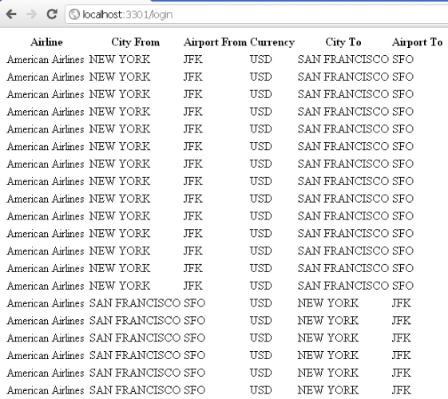
Same output, different Micro Frameworks...nice, isn't it?

See you soon with another recipe for the "Tasting the mix of..."

Greetings,

Blag.

viernes, 20 de mayo de 2011

Tic-Tac-Toe - A Python game


Python? Is that one of the coolest programming languages? Yes it is -:)
So yes, I started learning Python a couple of weeks ago...a month maybe...so how did it started?

I knew Python by name for quite a long time ago...doing Ruby stuff I knew that Ruby inherit a lot from Python (from Perl as well), but I never give it too much of attention.

One day, I said to myself...you must try Python dude! It looks like a nice one...so I put myself in the journey of learning a new programming language.
Most Python people say "Python is easy to learn, it's sexy, it makes write beautiful code"...and you know what? It's damn true -:)

So, as part of my learning process I took a Tic-Tac-Toe I made on Ruby 5 years ago and ported to Python...believe or not...the code is more robust and I managed to cut to 38 less lines...nice, huh?

So here's the code...and keep in mind that I'm a Python newbie...so don't came to me with your "Oh, if you were a real Pythonist, you should thing like this"...because I'm not a Pythonist...at least not yet -;) I'm an ABAPist -:P


#TIC_TAC_TOE
#Made by Blag - 2011

game = False
coordenates = ""
player_won = ""
player_turn = "1"
line1 = ""
line2 = ""
line3 = ""
line4 = ""
line5 = ""

board_array = [" ", " ", " ", " ", " ", " ", " ", " ", " "]
played_moves = [" ", " ", " ", " ", " ", " ", " ", " ", " "]


def clean_lines():
line1 = " "
line2 = " "
line3 = " "
line4 = " "
line5 = " "


def initial_board():
clean_lines()
line1 = " | | "
line2 = "---+---+---"
line3 = " | | "
line4 = "---+---+---"
line5 = " | | "

print "\n"
print (line1)
print (line2)
print (line3)
print (line4)
print (line5)
print "\n"


def board(coordenates, player):
clean_lines()

if board_array[coordenates] == " ":
board_array[coordenates] = player
else:
cheat = True

Move_1 = board_array[0]
Move_2 = board_array[1]
Move_3 = board_array[2]
Move_4 = board_array[3]
Move_5 = board_array[4]
Move_6 = board_array[5]
Move_7 = board_array[6]
Move_8 = board_array[7]
Move_9 = board_array[8]

print "\n"
print " %s | %s | %s " % (Move_1, Move_2, Move_3)
print "---+---+---"
print " %s | %s | %s " % (Move_4, Move_5, Move_6)
print "---+---+--- "
print " %s | %s | %s " % (Move_7, Move_8, Move_9)
print "\n\n"


def print_winner(player):
print "Player ", player, " won\n\n"


def check_who_wins():
game = False
if (board_array[0] != " " and board_array[0] == board_array[1] and
board_array[1] == board_array[2]):
game = True
if board_array[0] == "*":
print_winner(1)
else:
print_winner(2)

if (board_array[3] != " " and board_array[3] == board_array[4] and
board_array[4] == board_array[5]):
game = True
if board_array[3] == "*":
print_winner(1)
else:
print_winner(2)

if (board_array[0] != " " and board_array[0] == board_array[3] and
board_array[3] == board_array[6]):
game = True
if board_array[0] == "*":
print_winner(1)
else:
print_winner(2)

if (board_array[1] != " " and board_array[1] == board_array[4] and
board_array[4] == board_array[7]):
game = True
if board_array[1] == "*":
print_winner(1)
else:
print_winner(2)

if (board_array[2] != " " and board_array[2] == board_array[5] and
board_array[5] == board_array[8]):
game = True

if board_array[2] == "*":
print_winner(1)
else:
print_winner(2)

if (board_array[0] != " " and board_array[0] == board_array[4] and
board_array[4] == board_array[8]):
game = True
if board_array[0] == "*":
print_winner(1)
else:
print_winner(2)

if (board_array[2] != " " and board_array[2] == board_array[4] and
board_array[4] == board_array[6]):
game = True
if board_array[2] == "*":
print_winner(1)
else:
print_winner(2)

wins = 0

for board in board_array:
if board != " ":
wins += 1

if wins == 9:
game = True
print "It's a Tie'.\n\n"

return game


def make_move(player_turn, game, coordenates):
index_coordenates = 0
if game == False:
cheat = False
if player_turn == "1":
coordenates = input("Player 1: ")
coordenates = coordenates
if coordenates <= 0 or coordenates > 9:
print "Please, only values from 1 to 9\n"
make_move(player_turn, game, coordenates)
for moves in played_moves:
if moves == coordenates:
cheat = True
if cheat == True:
cheat = False
print "That move was already made!\n"
make_move(player_turn, game, coordenates)
index_coordenates = coordenates - 1
played_moves[index_coordenates] = coordenates
player = "*"
board(index_coordenates, player)
game = check_who_wins()

if game == False:
cheat = False
player_turn = "2"
if player_turn == "2":
coordenates = input("Player 2: ")
coordenates = coordenates
if coordenates <= 0 or coordenates > 9:
print "Please, only values from 1 to 9\n"
make_move(player_turn, game, coordenates)

for moves in played_moves:
if moves == coordenates:
cheat = True

if cheat == True:
cheat = False
print "That move was already made!\n"
make_move(player_turn, game, coordenates)

index_coordenates = coordenates - 1
played_moves[index_coordenates] = coordenates
player = "O"
board(index_coordenates, player)
game = check_who_wins()
player_turn = "1"
return game

initial_board()


while(game == False):
game = make_move(player_turn, game, coordenates)


Greetings,

Blag.

domingo, 13 de febrero de 2011

Regular Expressions Book


My newest book is ready to be bought -;)


Printed Book
PDF
Ebook

Enjoy!

Greetings,

Blag.