lunes, 26 de octubre de 2015

(Defn SAP HANA [OData Clojure])

This post was originally posted on (Defn SAP HANA [OData Clojure]).


Clojure is a dynamic programming language that targets the Java Virtual Machine. It is designed to be a general-purpose language, combining the approachability and interactive development of a scripting language with an efficient and robust infrastructure for multi-threaded programming.


Also…Clojure is a dialect of Lisp, and shares with Lisp the code-as-data philosophy and a powerful macro system.
So, before we move on…I want to share an XKCD comic that I really like about Lisp -:) And you will realize why after you see my source code -;)


So…no example or demonstration would be complete if we didn’t hook it up with SAP HANA, right? So…let’s go and do it -;)

First, we need to create a Calculation View and call it “FLIGHTS_BY_CARRIER”. It will be composed of two tables, SCARR and SFLIGHT.

First, we need to create a Join object and link the table by MANDT and CARRID. From here select the following fields as output MANDT, CARRID, CARRNAME, PRICE and CURRENCY.

Then create an Aggregation object selecting the fields CARRNAME, PRICE (As Aggregated Column) and CURRENCY. Filter the CURRENCY field by ‘USD’.

Then create a Projection object and select only PRICE and CARRNAME.

On the Semantics object make sure to select “CROSS CLIENT” as the Default Client.


Now, switch to the SAP HANA Development View and create a new repository. Call it “Flights”.

Create a new “XS Engine” project and call it “Flights” as well. Link it to the “Flights” repository.

Create an empty “.xsapp” file.

Create a file called “.xsaccess” with the following code.

.xsaccess
{
          "exposed" : true,
          "authentication" : [ { "method" : "Basic" } ]
}

Finally create a file called “flights.xsodata” with the following code

flights.xodata
service {
          "Blag/FLIGHTS_BY_CARRIER.calculationview" as "FLIGHTS" keys 
                                                        generate local "Id";
}

Activate your project and launch it on your browser, you should see something like this…


The SAP HANA part is done…so we can move into the Clojure part…

The best and easiest way to use Clojure in to install Leiningen, you can find the installation process here.

Once installed, simply create a project like this…

Create Project
Create Project
lein new clojure_hana
cd clojure_hana
nano project.clj

And modify it to looks like this…

project.clj
(defproject clojure_hana "0.1.0-SNAPSHOT"
  :description "FIXME: write description"
  :url "http://example.com/FIXME"
  :license {:name "Eclipse Public License"
            :url "http://www.eclipse.org/legal/epl-v10.html"}
  :dependencies [[org.clojure/clojure "1.6.0"]
[clj-http "1.1.0"]
[cheshire "5.4.0"]]
:main clojure-hana.core)

This will download and install the clj-http (To deal with web pages) and chesire (To deal with JSon) libraries into your project.

To code for Clojure, you can use any editor that you like…

Inside your clojure_hana folder, do the following…

Create source file
cd src
cd clojure_hana
nano core.clj

Copy and paste the following code…

core.clj
(ns clojure-hana.core
                (:require [clj-http.client :as client])
                (:require [cheshire.core :refer :all]))
 
(defn show_info [results len ctr]
                (cond
                                (or (= ctr len) (< ctr len))
                                                                (concat ((results ctr) :CARRNAME) " : " 
                                                                ((results ctr) :PRICE) "\n"
                                                                (show_info results len (inc ctr)))
                                (> ctr len)
                                                (concat "" "\n")))
 
(defn -main
  "Reads information from SAP HANA OData"
  [& args]
                (let [json (:body (client/get "http://YourHANAServer:8000/Flights/flights.xsodata/FLIGHTS?$format=json" 
                                  {:basic-auth ["YourUser" "YourPassword"]}))
                                  parsed_json (parse-string json true)
                                  results ((parsed_json :d) :results)]
                   (do(print(apply str(show_info results (dec (count results)) 0)) (symbol "")))))

Now you see it…Clojure is all about parenthesis, just like good old Lisp -:) Anyway…to run the project simply go back to your main clojure_hana folder and run

lein run


I have been interfacing SAP HANA OData with a lot of languages…and so far…Racket was one of my fastest implementations…but I have to say…Clojure was even faster to implement and the code is even shorter -:P…while it’s hard to get used to all those weird parenthesis…it’s a very nice and powerful language…and thing get done faster that one could imagine…

Greetings,

Blag.
Development Culture.

lunes, 19 de octubre de 2015

Julia, data analysis’s little sister...meets SAP HANA

This post was originally posted on Julia, data analysis’s little sister...meets SAP HANA.


Julia is not that young right now…as it first appeared on 2012 -:) It is a high-level dynamic programming language designed to address the requirements of high-performance numerical and scientific computing while also being effective for general purpose programming.


Woaw! That was a big description…so why should we care? Well…maybe because Julia was designed to be the language to rule them all…a language that can be used in any given situation…and without stopping to say if that’s true or not…I must say…Julia is really cool -:)

So…no example or demonstration would be complete if we didn’t hook it up with SAP HANA, right? So…let’s go and do it -;)

First, we need to create a Calculation View and call it “FLIGHTS_BY_CARRIER”. It will be composed of two tables, SCARR and SFLIGHT.

First, we need to create a Join object and link the table by MANDT and CARRID. From here select the following fields as output MANDT, CARRID, CARRNAME, PRICE and CURRENCY.

Then create an Aggregation object selecting the fields CARRNAME, PRICE (As Aggregated Column) and CURRENCY. Filter the CURRENCY field by ‘USD’.

Then create a Projection object and select only PRICE and CARRNAME.

On the Semantics object make sure to select “CROSS CLIENT” as the Default Client.


Now, switch to the SAP HANA Development View and create a new repository. Call it “Flights”.

Create a new “XS Engine” project and call it “Flights” as well. Link it to the “Flights” repository.

Create an empty “.xsapp” file.

Create a file called “.xsaccess” with the following code.

.xsaccess
{
          "exposed" : true,
          "authentication" : [ { "method" : "Basic" } ]
}

Finally create a file called “flights.xsodata” with the following code

flights.xodata
service {
          "Blag/FLIGHTS_BY_CARRIER.calculationview" as "FLIGHTS" keys 
                                                        generate local "Id";
}

Activate your project and launch it on your browser, you should see something like this…


The SAP HANA part is done…so we can move into the Julia part…

Go into your Julia environment and install the following packages

  • HTTPClient
  • Codecs
  • LightXML

You only need to do Pkg.add(“PackageName”) for each of them.

Then create a file called Julia_HANA_XML.jl on your favorite editor and copy the following code

Julia_HANA_XML.jl
using HTTPClient.HTTPC
using Codecs
using LightXML

credentials=encode(Base64,"SYSTEM:YourPassword")
Auth = bytestring(credentials)
Auth = "Basic " * Auth

flights=HTTPC.get("http://YourServer:8000/Flights/flights.xsodata/FLIGHTS",RequestOptions(headers=[("Authorization",Auth)]))

raw_text = takebuf_string(flights.body)
xdoc = parse_string(raw_text)
xroot = root(xdoc)

entry = get_elements_by_tagname(xroot,"entry")

for flights in entry
 print(content(find_element(find_element(find_element(flights,"content"),"properties"),"CARRNAME")),": ",
    content(find_element(find_element(find_element(flights,"content"),"properties"),"PRICE")),"\n")
end

To run this application, simply go to your Julia environment and type

Include(“Julia_HANA_XML.jl”)


If you are wondering…why didn’t I use JSON instead of XML? Well…there’s an easy explanation for that -:) Somehow…the HTTPClient package have a problem using ?$format=json so I was forced to use XML instead…

Greetings,

Blag.
Development Culture.

lunes, 12 de octubre de 2015

Node-RED -> Visual Node with SAP HANA

This post was originally posted on Node-RED -> Visual Node with SAP HANA.


Node-RED is a visual tool for wiring the Internet of Things.


In other words…it’s NodeJs with a nice visual interface.

In order to make it work, we can do the following.

Download NodeJS version 0.10.X for your corresponding architecture and OS.

I used Linux and here’s the most practical way to install it…

After downloading the package simply do..

sudo tar -C /usr/local --strip-components 1 -xzf node-v0.10.36-linux-x86.tar.gz

With that, NodeJS should be up and running…so now it’s time for Node-RED.

sudo npm install -g node-red

As easy as that -:)  Now, simply run node-red on the terminal and open a browser with 


First, we need to create a Calculation View and call it “FLIGHTS_BY_CARRIER”. It will be composed of two tables, SCARR and SFLIGHT.

Next, create a Join object and link the table by MANDT and CARRID. From here select the following fields as output MANDT, CARRID, CARRNAME, PRICE and CURRENCY.

Then create an Aggregation object selecting the fields CARRNAME, PRICE (As Aggregated Column) and CURRENCY. Filter the CURRENCY field by ‘USD’.

Then create a Projection object and select only PRICE and CARRNAME.

On the Semantics object make sure to select “CROSS CLIENT” as the Default Client.


Now, switch to the SAP HANA Development View and create a new repository. Call it “Flights”.

Create a new “XS Engine” project and call it “Flights” as well. Link it to the “Flights” repository.

Create an empty “.xsapp” file.

Create a file called “.xsaccess” with the following code.

.xsaccess
{
          "exposed" : true,
          "authentication" : [ { "method" : "Basic" } ]
}

Finally create a file called “flights.xsodata” with the following code

flights.xodata
service {
          "Blag/FLIGHTS_BY_CARRIER.calculationview" as "FLIGHTS" keys 
                                                        generate local "Id";
}

Activate your project and launch it on your browser, you should see something like this…


The SAP HANA part is done…so we can move into the Node-RED part…

First, select the http node and fill in /hana in the url section


Now, select the http request node and fill in the URL


And the rest of the data…


Now, select a Function node and fill in the following source code…


function
var results = msg.payload.d.results;
var message = "";
for (i=0;i<results.length;i++){
    var carrname = results[i].CARRNAME;
    var price = results[i].PRICE;
    message += carrname + ' : ' + price + "\n";
}
 
msg.payload = message;
return msg;


Select a template node and simply pass this…


{{payload}}


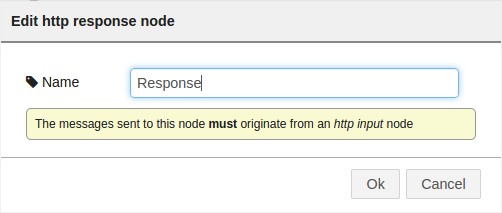
Finally, select an http response node and name if you want -:)


In the end...you should end up with something like this -;)


We’re done -:) And BTW…if you don’t feel like doing anything like this…you can always copy this code and import it back to Node-RED…

Node_RED_HANA.json
[{"id":"4ae9ba82.b51644","type":"http in","name":"","url":"/hana","method":"get",
"x":155,"y":91,"z":"3c0f3fe4.c3f0c","wires":[["ded8853e.212778"]]},{"id":"ded8853e.212778",
"type":"http request","name":"HANA","method":"GET","ret":"obj",
"url":"http://54.65.196.224:8000/Flights/flights.xsodata/FLIGHTS?$format=json",
"x":329,"y":102,"z":"3c0f3fe4.c3f0c","wires":[["c177bd31.3e884"]]},{"id":"c177bd31.3e884",
"type":"function","name":"GetInfo","func":"var results = msg.payload.d.results;
\n//var message = [];\nvar message = \"\";\nfor (i=0;i<results.length;i++){\n    
var carrname = results[i].CARRNAME;\n    var price = results[i].PRICE;\n    
//message[i] = carrname + ' : ' + price + \"\\n\"\n    message += carrname + ' : ' + 
price + \"\\n\";\n}\n\nmsg.payload = message;\nreturn msg;","outputs":1,"valid":true,
"x":507,"y":179,"z":"3c0f3fe4.c3f0c","wires":[["c59088cb.3a6f78"]]},{"id":"1995c536.e66a3b",
"type":"http response","name":"Response","x":653,"y":359,"z":"3c0f3fe4.c3f0c","wires":[]},
{"id":"c59088cb.3a6f78","type":"template","name":"Template","field":"payload",
"format":"handlebars","template":"{{payload}}","x":487,"y":321,"z":"3c0f3fe4.c3f0c",
"wires":[["1995c536.e66a3b"]]}]


To run it…simply select “Deploy” and head to http://localhost:1880/hana


Awesomely easy, huh? -:)

Greetings,

Blag.
Development Culture.

lunes, 5 de octubre de 2015

Even kids can play with SAP HANA

This post was originally posted on Even kids can play with SAP HANA.


Small Basic is a programming language created by Microsoft and based on the BASIC language. It’s aimed to teach kids how to code as it comes with Syntax Highlighting, Intelligent Code Completion and In-Editor documentation access. On top of that…the language has only 14 keywords.


Small Basic comes with a nice and very simple IDE…


And the Code Completion is just wonderful and nicely documented.

In order to access SAP HANA via ODBC we need to download the awesome library called LitDev.

Just extract it and copy the DLL’s and XML’s into a folder called “lib” inside your Small Basic installation. If you have any problems, simply right click the LitDev.dll file and unlock it.

Well…no example or demonstration would be complete if we didn’t hook it up with SAP HANA, right? So…let’s go and do it -;) (This part is not exactly kid friendly…so look for the help of an adult)…

First, we need to create a Calculation View and call it “FLIGHTS_BY_CARRIER”. It will be composed of two tables, SCARR and SFLIGHT.

First, we need to create a Join object and link the table by MANDT and CARRID. From here select the following fields as output MANDT, CARRID, CARRNAME, PRICE and CURRENCY.

Then create an Aggregation object selecting the fields CARRNAME, PRICE (As Aggregated Column) and CURRENCY. Filter the CURRENCY field by ‘USD’.

Then create a Projection object and select only PRICE and CARRNAME.

On the Semantics object make sure to select “CROSS CLIENT” as the Default Client.


The SAP HANA part is done…so we can move into the Small Basic part…

Now, simply create a new file and paste the following code…

HANA.sb
LDDataBase.Connection="DRIVER={HDBODBC};SERVERNODE=YourServer:30015;
DATABASE=SYSTEM;UID=YouUser;PWD=YourPassword"
Db = LDDataBase.ConnectOdbc("","","","","",0,"")
GraphicsWindow.Show()
Lv = LDDataBase.AddListView(GraphicsWindow.Width,GraphicsWindow.Height)
Quote = Text.GetCharacter(34)
Query = "SELECT * FROM" + Quote + "_SYS_BIC" + Quote + "." + Quote + "Blag/FLIGHTS_BY_CARRIER" + Quote
LDDataBase.Query(Db,Query, Lv, "False")

Replace Blag with your own package name -:)

Easy, huh?


There you go…now even kids can leverage the power of SAP HANA -;)

Greetings,

Blag.
Development Culture.

viernes, 2 de octubre de 2015

LED is my new Hello World - Ada Time

Alright...this one took me a long time...but finally compiled and worked -:)

led_numbers.adb
with Ada.Text_IO;
with Ada.Strings.Unbounded; use Ada.Strings.Unbounded;

procedure LED_Numbers is
 package IO renames Ada.Text_IO;
 package Number_IO is new Ada.Text_IO.Integer_IO (Integer);
 type Array_Row is array (1 .. 3) of Unbounded_String;
 type Array_Of_Array_Type is array (1 .. 10) of Array_Row;
 Array_Of_Arrays : Array_Of_Array_Type;
 s1 : Unbounded_String;
 s2 : Character;
 line1 : Unbounded_String;
 line2 : Unbounded_String;
 line3 : Unbounded_String;
 num : Integer;
 len : Natural;
begin 
 Array_Of_Arrays (1) (1) := s1 & " _  ";Array_Of_Arrays (1) (2) := S1 & "| | ";
        Array_Of_Arrays (1) (3) := S1 & "|_| ";Array_Of_Arrays (2) (1) := s1 & "  ";
        Array_Of_Arrays (2) (2) := S1 & "| ";Array_Of_Arrays (2) (3) := S1 & "| ";
 Array_Of_Arrays (3) (1) := s1 & " _  ";Array_Of_Arrays (3) (2) := S1 & " _| ";
        Array_Of_Arrays (3) (3) := S1 & "|_  ";Array_Of_Arrays (4) (1) := s1 & "_  ";
        Array_Of_Arrays (4) (2) := S1 & "_| ";Array_Of_Arrays (4) (3) := S1 & "_| ";
 Array_Of_Arrays (5) (1) := s1 & "    ";Array_Of_Arrays (5) (2) := S1 & "|_| ";
        Array_Of_Arrays (5) (3) := S1 & "  | ";Array_Of_Arrays (6) (1) := s1 & " _  ";
        Array_Of_Arrays (6) (2) := S1 & "|_  ";Array_Of_Arrays (6) (3) := S1 & " _| ";
 Array_Of_Arrays (7) (1) := s1 & " _  ";Array_Of_Arrays (7) (2) := S1 & "|_  ";
        Array_Of_Arrays (7) (3) := S1 & "|_| ";Array_Of_Arrays (8) (1) := s1 & "_   ";
        Array_Of_Arrays (8) (2) := S1 & " |  ";Array_Of_Arrays (8) (3) := S1 & " |  ";
 Array_Of_Arrays (9) (1) := s1 & " _  ";Array_Of_Arrays (9) (2) := S1 & "|_| ";
        Array_Of_Arrays (9) (3) := S1 & "|_| ";Array_Of_Arrays (10) (1) := s1 & " _  ";
        Array_Of_Arrays (10) (2) := S1 & "|_| ";Array_Of_Arrays (10) (3) := S1 & " _| ";
 IO.Put("Enter a number: ");
 Number_IO.Get(num);
 s1 := s1 & Integer'Image(num);
 len := Length(s1);
 for i in Integer range 2..len loop
  s2 := Element(s1,i);
  num := Character'Pos(s2) - 48;
  if num < 10 then
   num := num + 1;
  end if;
  line1 := line1 & Array_Of_Arrays (num) (1);
  line2 := line2 & Array_Of_Arrays (num) (2);
  line3 := line3 & Array_Of_Arrays (num) (3);
 end loop;
 IO.Put(To_String(line1));
 IO.Put_Line("");
 IO.Put(To_String(line2));
 IO.Put_Line("");
 IO.Put(To_String(line3));
end LED_Numbers;

Now...the screenshots...


Greetings,

Blag.
Development Culture.

jueves, 1 de octubre de 2015

My first post on Ada

Well...it might be my fist post on Ada but it's not my first encounter with Ada -;) I learned it about 10 years ago or more...but until now...I didn't give to much of a use...

If you're wondering...what's Ada? Well...according to Wikipedia...

Ada is a structured, statically typed, imperative, wide-spectrum, and object-oriented high-level computer programming language, extended from Pascal and other languages.

So yes...it pretty much looks like Pascal...but way more strict...and complex...

As usual with my "My first post on..." I build a Fibonacci List generator...something simple to start re-learning the language...so here it goes...

fibonacci.adb
with Ada.Text_IO;
with Ada.Strings.Unbounded; use Ada.Strings.Unbounded;

procedure Fibonacci is
 package IO renames Ada.Text_IO;
 package Number_IO is new Ada.Text_IO.Integer_IO (Integer);
 num : Integer;
 
 function Fib(num:Integer;a:Integer;b:Integer) return Unbounded_String is
 result : Unbounded_String;
 begin
  if a > 0 and num > 1 then
   result := result & Integer'Image(a+b) & " " & Fib(num-1,a+b,a);
  elsif a = 0 then
   result := Integer'Image(a) & " " & Integer'Image(b) & " " & 
             Integer'Image(a+b) & " " & Fib(num-1,a+b,b);
  end if;
  return result;
 end Fib;
 
begin
 IO.Put("Enter a number: ");
 Number_IO.Get(num);
 IO.Put(To_String(Fib(num,0,1)));
end Fibonacci;

And here are the screenshots...


Well...that's was fairly easy...but of course I needed to investigate a little bit...so the challenge will be when I start working on my LED Numbers app... -:P

Greetings,

Blag.
Development Culture.

martes, 29 de septiembre de 2015

SAP HANA on the OCaml hump

This post was originally posted on SAP HANA on the OCaml hump.


OCaml is an industrial strength programming language supporting functional, imperative and object-oriented styles.


Sounds nice, right? OCaml is the next step of the Caml programming language.

Having learning other functional programming languages like Haskell and Erlang, OCaml was the next obvious choice for me…so I decided to start learning it…not an easy task for sure…but really fun and enlighten.

So…no example or demonstration would be complete if we didn’t hook it up with SAP HANA, right? So…let’s go and do it -;)

First, we need to create a Calculation View and call it “FLIGHTS_BY_CARRIER”. It will be composed of two tables, SCARR and SFLIGHT.

First, we need to create a Join object and link the table by MANDT and CARRID. From here select the following fields as output MANDT, CARRID, CARRNAME, PRICE and CURRENCY.

Then create an Aggregation object selecting the fields CARRNAME, PRICE (As Aggregated Column) and CURRENCY. Filter the CURRENCY field by ‘USD’.

Then create a Projection object and select only PRICE and CARRNAME.

On the Semantics object make sure to select “CROSS CLIENT” as the Default Client.


Now, switch to the SAP HANA Development View and create a new repository. Call it “Flights”.

Create a new “XS Engine” project and call it “Flights” as well. Link it to the “Flights” repository.

Create an empty “.xsapp” file.

Create a file called “.xsaccess” with the following code.

.xsaccess
{
          "exposed" : true,
          "authentication" : [ { "method" : "Basic" } ]
}

Finally create a file called “flights.xsodata” with the following code

flights.xodata
service {
          "Blag/FLIGHTS_BY_CARRIER.calculationview" as "FLIGHTS" keys 
                                                        generate local "Id";
}

Activate your project and launch it on your browser, you should see something like this…


The SAP HANA part is done…so we can move into the OCaml part…

For first timers, OPAM (the package manager for OCaml can be tricky and sometimes frustrating), so let’s make your lives easier by following this single easy steps…on a terminal session type this…

• opam init
• eval `opam config env`
• opam switch 4.01.0
• eval `opam config env`
• opam install core utop core_extended async uri yojson cohttp lwt ezjsonm

It will take a while but by installing all the required packages in a single command, prevents errors from happening.

To code for OCaml I use one of the most awesome editors I have ever found…Geany. It comes almost pre-configured to handle a lot of programming languages, but just to make sure, here’s how I configure it to work with OCaml.

First, create a file and save it as OCaml_HANA.ml

Then, click on the “Choose more build actions” button


The little half arrow on the right of the brown brick looking button. This will open the following screen


On Compile put the following

corebuild -pkg yojson,cohttp.async,cohttp.lwt,lwt,ezjsonm "%e.native"

And on Execute put

“./%e.native”

With that, we should be more than ready to start coding -:) Copy and paste the following code…

OCaml_HANA.ml
open Core.Std
open Yojson.Basic.Util
open Ezjsonm

let get_definition_from_json json =
 let json = Ezjsonm.from_string(json) in
 let json = Ezjsonm.(find json ["d";"results"]) in
 let json = Ezjsonm.to_string(json) in
 let json = Yojson.Basic.from_string(json) in
 let json = Yojson.Basic.Util.to_list json in
 let carrname = Yojson.Basic.Util.filter_member "CARRNAME" json in
 let carrname = Yojson.Basic.Util.filter_string carrname in
 let price = Yojson.Basic.Util.filter_member "PRICE" json in
 let price = Yojson.Basic.Util.filter_string price in
 printf "Reading SAP HANA from OCaml\n\n";
 for i = 0 to List.length(carrname) - 1 do
  printf "%s: %s\n" (List.nth_exn carrname i) (List.nth_exn price i)
done

let fetch uri =
 let cred = Cohttp.Auth.string_of_credential(`Basic("SYSTEM", "YourPassword")) in
 let headers = Cohttp.Header.init() in 
 let headers = Cohttp.Header.add headers "Authorization" cred in
 let open Lwt in
 Cohttp_lwt_unix.Client.get ~headers:headers uri 
 >>= fun (_,body) ->
 Cohttp_lwt_body.to_string_list body
 >>= fun strings ->
 return(get_definition_from_json (String.concat strings))  

let () =
  let hana_uri = Uri.of_string "http://YourServer:8000/Flights/flights.xsodata
                                /FLIGHTS?$format=json"
  in Lwt_main.run (fetch hana_uri)

Save your file, press the “Compile the current file” button. The first on the previous images which shows a triangle with an arrow and a ball (all in nice 3D) and then press the “Run or view the current file” button. Last one on the previous image which shows two engines.


You will notice that it comes pretty fast…

Now…something funny about my code…and that might be because of two simple reasons…

• I’m still learning OCaml
• The documentation for external packages is almost non-existent (Actually, I need to browse the GitHub source codes in order to achieve most of the code)

So…the funny thing is that I’m using two different JSON libraries to actually read the ODATA generated by SAP HANA…by using only one I couldn’t manage to get the information that I needed…so using both and extracting pieces from here and there I actually got what I wanted…not so fun when you are doing it…but in the end there a big reward on finally being able to compile it and get the desired output -;)

Greetings,

Blag.
Development Culture.

lunes, 28 de septiembre de 2015

Amazon Alexa and Philips Hue

This post was originally posted on Amazon Alexa and Philips Hue.


If you are an SAP Employee, please follow us on Jam.


Since we got the Amazon Alexa on the d-shop here at SAP Labs Silicon Valley...I have been looking for new ways to make it interact with many things...so a couple of days my good friend and colleague Aaron Williams asked me about the Philips Hue...

At first...I wasn't sure it was going to work, because as everybody knows...the Hue needs to be on the same network to be able to work...and Amazon Lambda is sitting on a server who knows where...so I start looking into it...

When using the Amazon Alexa app we can hook up the Hue to allow Alexa to turn on and off the light...but nothing more...

You need to go to Settings --> Connected Home -> Discover Devices (It will ask you to push the button on the Hue Bridge).

For sure...this wasn't enough for me...so I kept thinking about it and realized that "Hey!...the Philips Hue works when you want to change the lights...and it does it remotely...so there must be a way to do it"...

Gladly...I found this blog...Philips Hue Remote API Explained...where the author basically explains how you can "trick" Hue into thinking that you are connecting from your IPhone...hence...you're doing a remote connection...genius if you ask me -;)

For this to work you need to create a meethue account...just singing using your Google account didn't worked for me...


By the way...if you find something like this at the end "%3D" simply change it for an "="

Having both the BridgeId and AccessToken we should be ready to go  -;)

We need to create both a Function and a Skill...please refer to this blog Amazon Alexa and SAP HANA to create them...

The function will be called getLights and the skill Lights. The Invocation Name will be "lights".

Here's the Interaction Model that we're going to use...

Intent Schema
{
  "intents": [
    {
      "intent": "GetLightsIntent",
      "slots": [
        {
          "name": "color",
          "type": "LITERAL"
        }
      ]
    },
    {
      "intent": "HelpIntent",
      "slots": []
    }
  ]
}

Sample Utterances
GetLightsIntent color {red|color}
GetLightsIntent color {blue|color}
GetLightsIntent color {green|color}
GetLightsIntent color {pink|color}
GetLightsIntent color {purple|color}
GetLightsIntent color {aqua|color}
GetLightsIntent color {white|color}
GetLightsIntent color {yellow|color}
GetLightsIntent color {black|color}

HelpIntent help
HelpIntent help me
HelpIntent what can I ask you
HelpIntent get help
HelpIntent to help
HelpIntent to help me
HelpIntent what commands can I ask
HelpIntent what commands can I say
HelpIntent what can I do
HelpIntent what can I use this for
HelpIntent what questions can I ask
HelpIntent what can you do
HelpIntent what do you do
HelpIntent how do I use you
HelpIntent how can I use you
HelpIntent what can you tell me
HelpIntent how do i change colors

Now...the most important thing is the code -:P

Let’s create a folder and call it “Lights” or something nice like that…then create a folder called “src”. Copy the code from here...and create a file called “AlexaSkills.js”

We’re going to need to install the request package on our function, so do the following on a terminal

sudo npm install --prefix=~/Alexa/Lights/src request

This will create a folder called “node_modules” with the package in our project folder…then create a file called “index.js” and copy and paste the following code…

index.js
var request = require("request")
  , AlexaSkill = require('./AlexaSkill')
  , APP_ID     = 'YourAPPId'
  , TOKEN = 'YourAccessToken';

var error = function (err, response, body) {
    console.log('ERROR [%s]', err);
};

var getJsonFromLights = function(color,callback){
switch(color){
 case 'red':
  x = 0.674; y = 0.322; break;
 case 'green':
  x = 0.408; y = 0.517; break;
 case 'blue':
  x = 0.168; y = 0.041; break;
 case 'white':
  x = 0.3227; y = 0.329; break;
 case 'yellow':
  x = 0.4317; y = 0.4996; break;
 case 'purple':
  x = 0.2725; y = 0.1096; break;
 case 'orange':
  x = 0.5562; y = 0.4084; break;
 case 'pink':
  x = 0.3944; y = 0.3093; break;
 case 'black':
  x = 0.168; y = 0.041; break;    
 case 'aqua':
  x = 0.2858; y = 0.2747; break;
 default:
  x = 0.3227; y = 0.329; break;
}

var options = { method: 'POST',
                url: 'https://www.meethue.com/api/sendmessage',
                qs: { token: TOKEN},
                headers: { 'content-type': 'application/x-www-form-urlencoded' },
                body: 'clipmessage={ bridgeId: "YourBridgeId", 
                                     clipCommand:  {url:"/api/0/lights/1/state", 
                                     method: "PUT", body: {xy:[' + x + ',' + y + ']}}}' };

var error_log = "";

request(options, function (error, response, body) {
 if (!error) {
  error_log = color;
 }else{
  error_log = "There was a mistake";
 }
 callback(error_log);
    });
}

var handleLightsRequest = function(intent, session, response){
  getJsonFromLights(intent.slots.color.value, function(data){
 var text = 'The color has been changed to ' + data;
    var cardText = 'The color has been changed to ' + intent.slots.color.value;

    var heading = 'The color has been changed to ' + intent.slots.color.value;
    response.tellWithCard(text, heading, cardText);
  });
};

var Lights = function(){
  AlexaSkill.call(this, APP_ID);
};

Lights.prototype = Object.create(AlexaSkill.prototype);
Lights.prototype.constructor = Lights;

Lights.prototype.eventHandlers.onSessionStarted = function(sessionStartedRequest, session){
  console.log("onSessionStarted requestId: " + sessionStartedRequest.requestId
      + ", sessionId: " + session.sessionId);
};

Lights.prototype.eventHandlers.onLaunch = function(launchRequest, session, response){
  // This is when they launch the skill but don't specify what they want.

  var output = 'Welcome to Hue Lights. Please say a color';

  var reprompt = 'Which color would you like?';

  response.ask(output, reprompt);

  console.log("onLaunch requestId: " + launchRequest.requestId
      + ", sessionId: " + session.sessionId);
};

Lights.prototype.intentHandlers = {
  GetLightsIntent: function(intent, session, response){
    handleLightsRequest(intent, session, response);
  },

  HelpIntent: function(intent, session, response){
    var speechOutput = 'Change your Hue Light to any color. Which color would you like?';
    response.ask(speechOutput);
  }
};

exports.handler = function(event, context) {
    var skill = new Lights();
    skill.execute(event, context);
};

When it's done...simply compress the node_module folder, AlexaSkills.js and index.js files into a .zip file called Lights.zip and upload it to your Amazon Lambda...

To call this skill on Alexa...you can do the following...

  • Alexa, turn on lamp 1 (Taking into account that your light my be called different)
  • Alexa, ask lights for color blue
  • Alexa, turn off lamp 1

You can see the available colors in the code...but just in case they should be...

  • Red
  • Green
  • Blue
  • Aqua
  • Pink
  • White
  • Black
  • Yellow
  • Purple
  • Orange

 And of course...here's the video  -:D


Greetings,

Blag.
Development Culture.

jueves, 24 de septiembre de 2015

R - My journey so far

The first time I heard about R, was about 4 years ago...a couple of week after I joined SAP. At that time I read in one of our internal documents that SAP HANA was going to be able to interact with the R programming Language.

At first, I was totally clueless about R...I had never heard from it before...so I of course start looking for some more information, download R and RStudio and start learning how to use it...

After some time...I posted my first blog talking about R...that was on November 28, 2011...the blog was Dealing with R and HANA...

After that I kept learning and using it whenever it was suitable...and I end up writing my most successful blog on the SAP Community Network...that was on May 21, 2012.


That up to now, has 21,879 views and 62 comments, 16 likes and 32 bookmarks.

R is huge...it really is...there's thousands of packages that solve thousands of issues...so that's when I start reading R related books from my good friends at Packt Publishing...


As I was improving my R skills...I knew that something was missing...I really didn't knew much about Statistics and my Machine Learning skills were pretty dull as well...that's when I read another awesome book...and I think my favorite book on R so far...

Machine Learning with R (See my review here).


Another topic that it's interesting is Social Media...and how to get value out of it...


If you're wondering how Social Media can be used with R, then please take a look at my blog Getting Flexible with SAP HANA where I use SAP HANA, R, Twitter and Schema Flexibility to analyze hashtags that can be further explored using for example SAP Lumira.

If you are into the Bioinformatics world...which I'm not -:( You should appreciate this book...


And there are some more books that I haven't read yet, but might help you to get started into the R world like...


So...why are all this books important? Well...obviously, they are all about R and R is amazing and becoming more important each and every day...

Look at this video to realize why Data Science is a hot topic to learn...

Or you just can download it as a nice PDF for offline reading http://bit.ly/1MryNha

Also...by just reading this blog post...you have the opportunity to buy any of these books with a 50% discount by using this code at checkout time...

SIXRB50


A big opportunity NOT to be missed out...


The validity of codes till 31st October. Limited copies are available.

Greetings,

Blag.
Development Culture.

Join us for Geeky Thursday on October

What's Geeky Thursday?

It's an event that happens every Thursday per week. An hour and little bit more of "hands-on" session where not so common programming languages (ex: Lua, Julia, R, Haskell) and Programming Paradimgs (Functional, Stack Based, Logical, Object-Oriented) are being presented.

Why Geeky Thursday?

Because Developers...because knowing just a couple of programming languages is not enough...because learning another paradigm can expand your horizons and make a better developer.

Geeky Thursday is hands-on...do I need my laptop?

Well...it really depends on you...the source code is going to be available...it's going to be explained and run on-site...there's not going to be live typing...but it's always better if you can compile and run the examples yourself...

Is Geeky Thursday only about Programming?

No...without any aims to become a "Brown Bag Session"...Geeky Thursday looks forward to become a "Mini Meetup" space...where cool things can be explored.

Is Geeky Thursday held only on Silicon Valley?

For now...it is...but...if you manage or you are in touch with a d-shop manager, ask him/her to get in touch with me (a.tejada.galindo@sap.com)...I would be more than happy to share my slides and anything needed to expand Geeky Thursday to other locations.

Is any space limitation?

Yes, we can invite 10 people from SAP and we have space for 5 people that external to SAP. Depending on the attendance level we might increase this values.

Can I host a Geeky Thursday event?

Of course! You're more than welcome! Just get in touch with me and will be setup an slot for you!

Scheduled Geeky Thursdays

R Programming Language --> October 8 from 1:00 to 2:00pm (d-shop on Building 9 at SAP Labs Silicon Valley)

For SAP Employees

https://jam4.sapjam.com/groups/sh2Kp26QQkHwkMPFAEqAD9/events/K7BJsIiucH7XjLszzcO0Eh

For Externals

https://www.eventbrite.com/myevent?eid=18783268261

R is a programming language and software environment for statistical computing and graphics. Please join us to learn the basics of R.

You can download R from here https://cran.r-project.org/

You can download RStudio from here https://www.rstudio.com/

Julia Programming Language --> October 15 from 1:00 to 2:00pm (d-shop on Building 9 at SAP Labs Silicon Valley)

For SAP Employees

https://jam4.sapjam.com/groups/sh2Kp26QQkHwkMPFAEqAD9/events/5FieiznXF6EgaGfg34qKdd

For Externals

https://www.eventbrite.com/myevent?eid=18783317408

Julia is a high-level dynamic programming language designed to address the requirements of high-performance numerical and scientific computing while also being effective for general-purpose programming, even web use or as a specification language.

You can download Julia from here http://julialang.org/

Clojure Programming Language --> October 29 from 1:00 to 2:00pm (d-shop on Building 9 at SAP Labs Silicon Valley)

For SAP Employees

https://jam4.sapjam.com/groups/sh2Kp26QQkHwkMPFAEqAD9/events/RoZ8dId4NGqxzWCys2hMN4

For Externals

https://www.eventbrite.com/myevent?eid=18783402663

Clojure is a dynamic programming language that targets the Java Virtual Machine (and the CLR, and JavaScript). It is designed to be a general-purpose language, combining the approachability and interactive development of a scripting language with an efficient and robust infrastructure for multithreaded programming. Clojure is a dialect of Lisp, and shares with Lisp the code-as-data philosophy and a powerful macro system.

You can download Clojure from here http://clojure.org/

Greetings,

Blag.
Development Culture.